
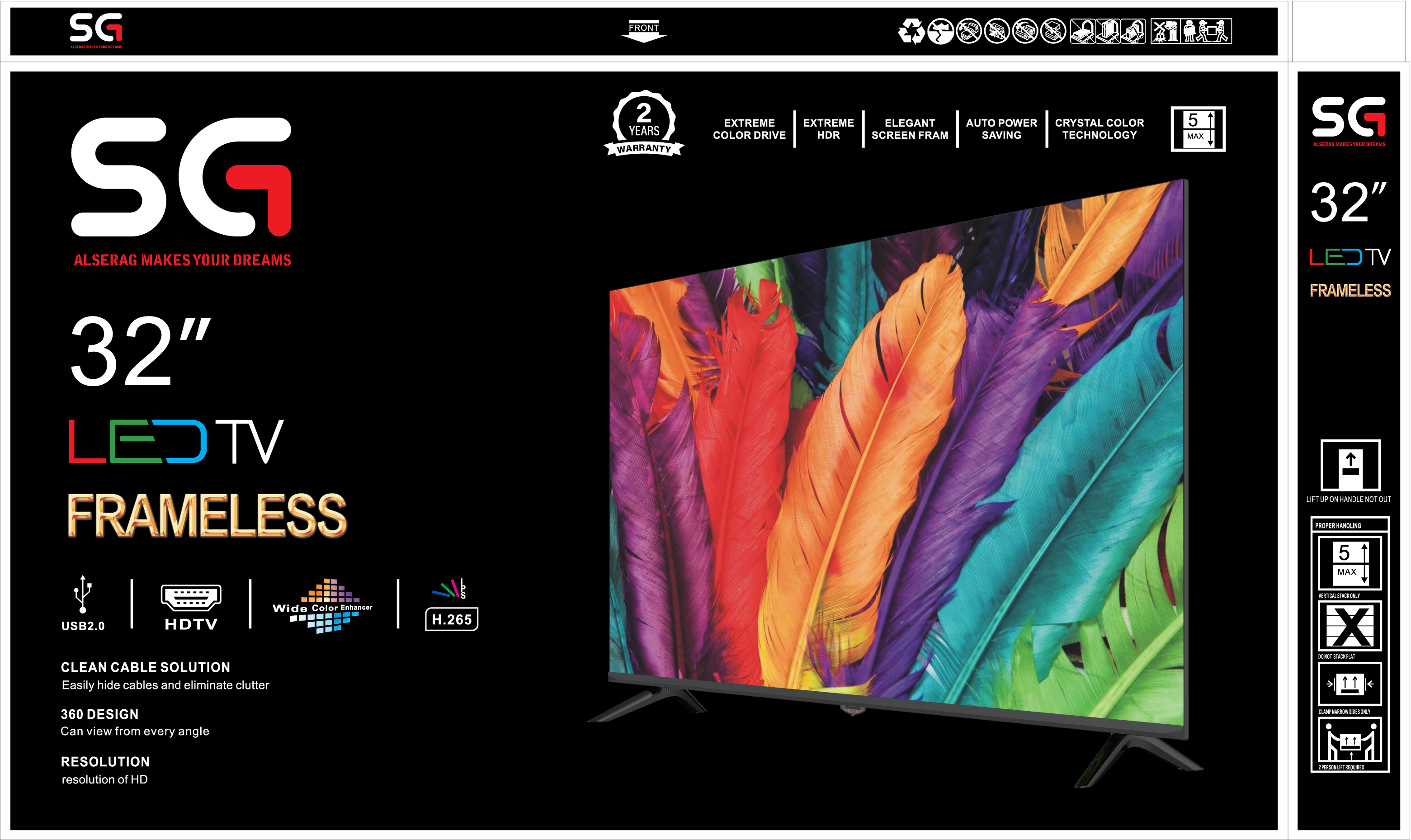
Complete Setup Guide: SG ALSERAG 32" Normal LED TV
Getting Started with Your SG ALSERAG 32" Normal LED TV
Congratulations on your new SG ALSERAG 32" Normal LED TV! This comprehensive guide will walk you through everything you need to know to get the most out of your new TV.
Unboxing and Initial Setup
Start by carefully unboxing your TV. Make sure to lift it using the handles and have two people assist with larger models. Place the TV on a stable, level surface. Connect the power cable to the TV and plug it into a power outlet.
Mounting Options
You can either use the included stand or mount the TV on a wall. If using a wall mount, ensure it's compatible with VESA mounting standards and can support the TV's weight. Follow the manufacturer's instructions carefully for safe installation.
Connecting Devices
Connect your devices using the available ports:
- HDMI: Connect gaming consoles, streaming devices, or set-top boxes
- USB 2.0: Connect external storage devices to play media files
- Antenna/Cable: Connect your antenna or cable box for live TV
Picture Settings Optimization
To achieve the best picture quality, adjust these settings:
- Picture Mode: Choose between Standard, Movie, Game, or Custom modes based on your content
- Brightness: Adjust based on your room lighting (typically 40-50 for normal rooms)
- Contrast: Set to maintain detail in both bright and dark scenes
- Color: Adjust saturation to your preference (usually 50-55 for natural colors)
- Sharpness: Set to moderate levels to avoid oversharpening artifacts
- HDR: Enable HDR mode for compatible content to enjoy enhanced contrast and colors
Audio Settings
Configure audio settings to match your setup:
- If using external speakers or a soundbar, connect via HDMI ARC or optical audio
- Adjust TV speaker settings if using built-in speakers
- Enable surround sound if available and using compatible audio equipment
Network and Connectivity
For basic TV usage, you can connect via cable or antenna. For enhanced features, consider connecting to your home network.
Organizing Your Entertainment
Take advantage of the Clean Cable Solution feature to keep your setup organized. Use cable management accessories to route cables neatly behind the TV stand or through wall-mounted cable channels.
Maintenance Tips
Keep your TV clean and well-maintained:
- Use a microfiber cloth to gently clean the screen (never use harsh chemicals)
- Dust the TV regularly to prevent buildup
- Ensure proper ventilation around the TV to prevent overheating
- Use the Auto Power Saving feature to reduce energy consumption
Troubleshooting
If you encounter issues:
- No Picture: Check all cable connections and ensure the TV is set to the correct input source
- Wi-Fi Issues: Restart your router and reconnect to the network
- Audio Problems: Check audio settings and cable connections
- Smart Features Not Working: Ensure the TV is connected to the internet and check for software updates
Related posts
 Product Reviews
Review: SG ALSERAG 32" Normal LED TV - Complete Analysis
An in-depth review of the SG ALSERAG 32" Normal LED TV, covering its features, picture quality, smart capabilities, and overall value.
Product Reviews
Review: SG ALSERAG 32" Smart LED TV - Complete Analysis
An in-depth review of the SG ALSERAG 32" Smart LED TV, covering its features, picture quality, smart capabilities, and overall value.
Technology Guides
Complete Setup Guide: SG ALSERAG 32" Smart LED TV
Step-by-step guide to setting up and optimizing your SG ALSERAG 32" Smart LED TV for the best viewing experience.
Buying Guides
SG ALSERAG 32" Smart LED TV vs Similar TVs: Which Should You Choose?
A detailed comparison of the SG ALSERAG 32" Smart LED TV against similar TVs in its size and price range.